Assigning Perks to Employees
Manage which perks each employee receives. You can assign new perks or remove existing ones from an employee's profile.
View Employee's Current Perks
Step 1: Select an Employee
From the Employees list, click on an employee to open their profile.
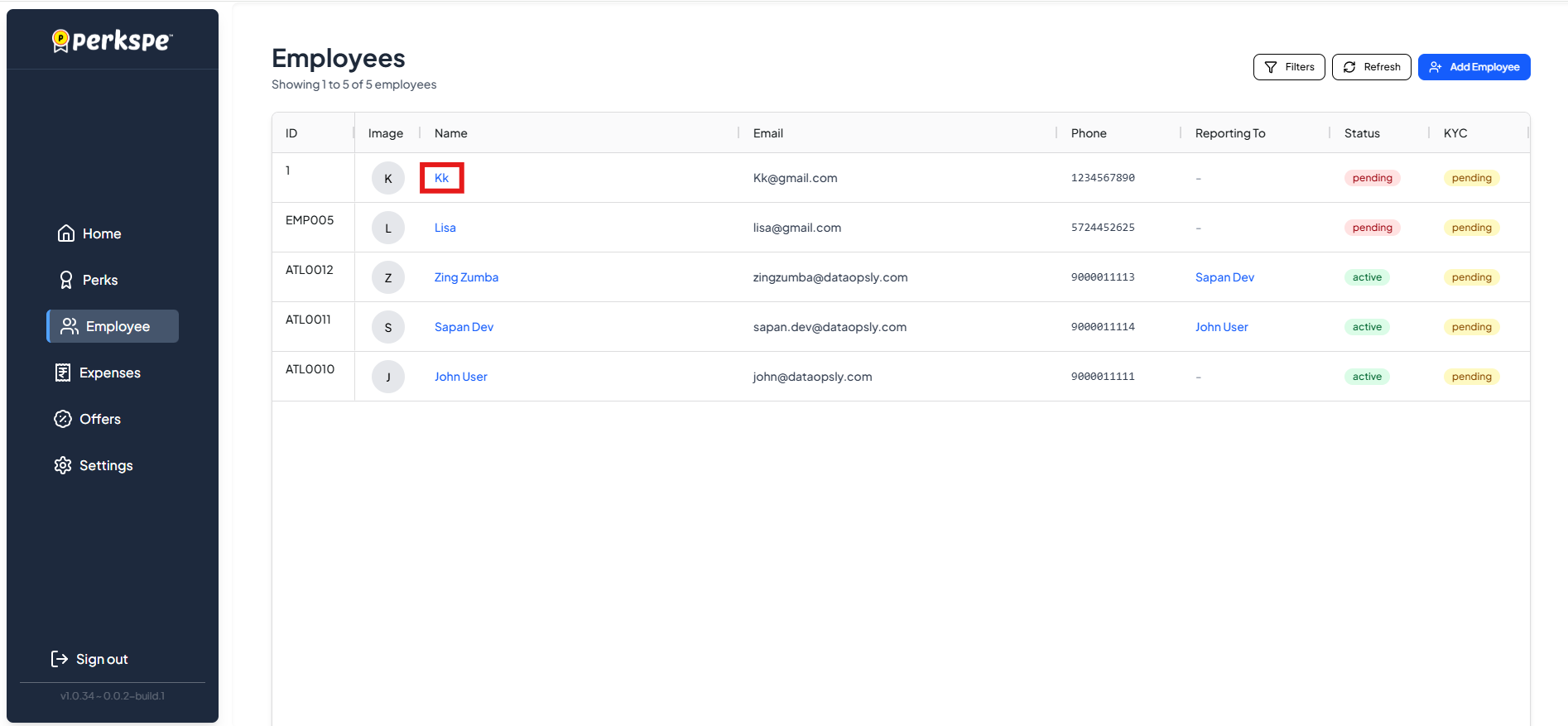
Step 2: Go to Perks Tab
Click the Perks tab to see all perks assigned to this employee.
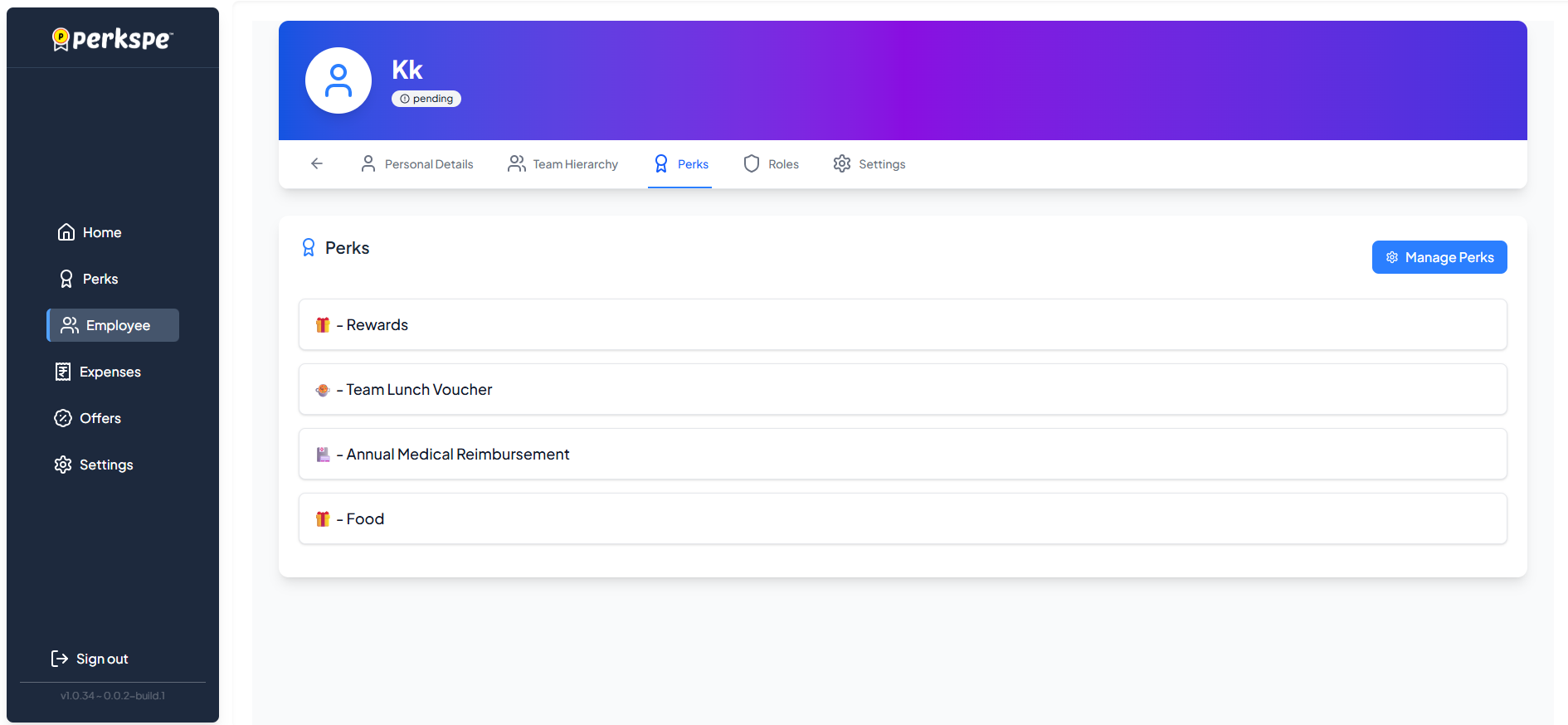
Example: Lisa has these perks:
- 🧾 Team Lunch Voucher
- 🏏 Cricket Turf
Assign or Remove Perks
Step 1: Click Manage Perks
Click the Manage Perks button.

Step 2: View Available Perks
A popup shows all perks in your organization:
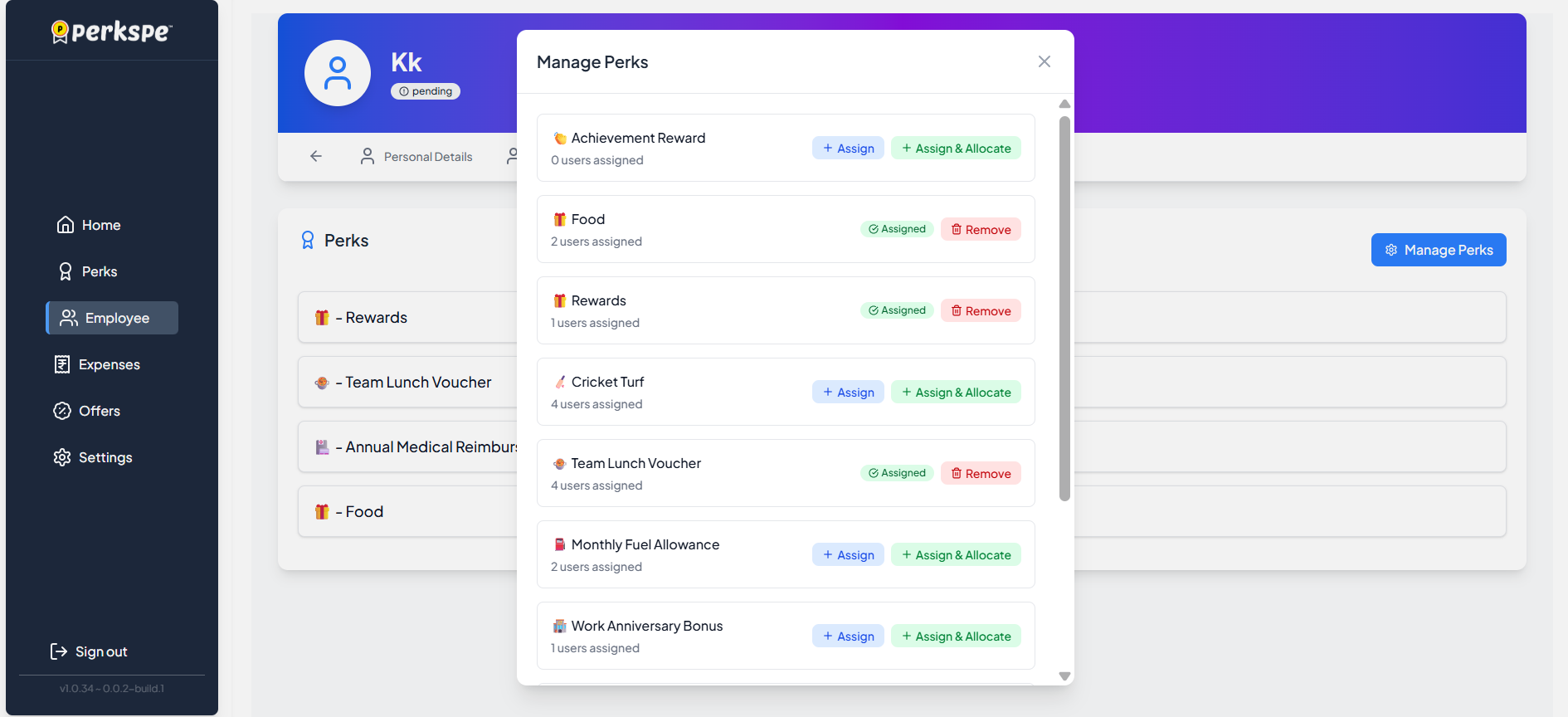
Example perks:
| Perk | Status |
|---|---|
| 🎖️ Achievement Reward | Available |
| 🍱 Food | Available |
| 🎁 Rewards | Available |
| 🏏 Cricket Turf | ✅ Assigned |
| 🍽️ Team Lunch Voucher | ✅ Assigned |
Step 3: Make Changes
To assign a new perk:
- Check the perk you want to add
- Click Assign or Assign & Allocate
To remove a perk:
- Uncheck the currently assigned perk
- Click Save to confirm
Quick Summary
| Task | How to do it |
|---|---|
| View employee's perks | Employees → Select employee → Perks tab |
| Assign new perks | Perks tab → Manage Perks → Check perks → Assign |
| Remove perks | Perks tab → Manage Perks → Uncheck perks → Save |